Did you know that 1 in 3 of people will purchase a product after watching a how to video tutorial?
That’s right.
One third.
That’s according to a recent study by Google.
It was also revealed that ‘how to’-related searches are growing by 70% every year on Youtube. And this study from Searchmetrics in 2015 revealed that 55% of all keyword searches in the USA returned at least one video in the search results pages.
Even more interesting? Most of these videos were hosted on Youtube.
If that hasn’t made you sit up and take note, then I don’t know what else can.

Jump On The YouTube Bandwagon
Video is big.
[show_to accesslevel=’free’]
And it’s a great mode for soaking up information. And thanks to smart phones taking over our lives (literally), video has also become easy to consume. The result is that more and more people are turning to video for learning how to do things.
Don’t know how to do something? Anything?
Hop on to Youtube and you’ll be an expert in 10 minutes flat.
So what does that mean to you, a small business owner?
Well, it means that you definitely should be jumping on this bandwagon.
Watch any of our Youtube videos at Marketing For Owners
Video lets you show off your expertise. That builds credibility and trust. And these, my dear Owners are two of the most important factors for turning prospects into customers.
What’s more, you should be taking advantage of Youtube’s almost ‘magic’ ability to rank well in the search engine rankings.
In a nutshell:
Let YouTube do the leg work for you!
Don’t forget that you can embed YouTube videos too. So if you want to show your video on your own site, simply upload it to YouTube, grab the embed code, and paste it into your WordPress blog post.
Making A ‘How To’ Video The Easy Way – Make A Slide Presentation!
Creating a PowerPoint (slideshow) presentation is a great way to share your knowledge. It’s especially useful if you don’t want to get in front of the camera! Simply create a powerpoint presentation instead, and start talking!
A slideshow presentation doesn’t have to be boring. It just depends on how you put your presentation together.
- Use images, bullet points, and animations
- Include your business name and logo somewhere on each slide (preferably in the same place)
- Keep the content of your slides short and punchy
Also, remember that a shorter video increases the likelihood of people watching it through to the end. So make sure you keep your videos short (20 to 30 minutes max). If your video is going to be longer, simply break it up into shorter videos.
Do that and you’ll be on to a winning formula.
But how do you record your voice and the PowerPoint presentation at the same time?
Software That Makes It As Easy As 1-2-3
Nowadays it’s very easy to create a great ‘how to’ video because of the software that’s out there.
If you want to keep it very simple, you can simply stand in front of a camera and talk. But if you’re shy, or want to show photos or text, then a slide presentation could be just what you need.
Recording a slide presentation and voice-over can be very easy if you have the right software. Here are a few choices:
For the slide presentation:
- Microsoft Powerpoint (we recommend this one and will be using this in our walkthrough later in this article)
- Google Slides (free)
- Keynote (for Macs)
For the screen recording:
- Techsmith’s Camtasia Studio (we love this and I’ll be using this in our tutorial). You can get a 30 day trial here…
- Screenr – free
- Jing (free but limited to 5 minutes of screen recording time)
- Screen-Cast-O-Matic – free
- CamStudio – free
Introducing Camtasia’s PowerPoint Toolbar
Let’s walk through how you can easily record your video slideshow and voice-over. For this example, I’ll be using Microsoft PowerPoint for the slides, and Techsmith Camtasia Studio to record and edit the video itself.
Both PowerPoint and Camtasia Studio are great at what they do and very easy to use. And more importantly Camtasia has a ‘toolbar add-on’ which makes the process even easier and more efficient.
Let’s take a closer look…
When you first install Camtasia Studio, it will automatically install a toolbar in Powerpoint.
This little piece of magic is not to be under-estimated. With it, you’ll be able to record your screen while narrating. In a nutshell, it lets you record a ‘how to’ video tutorial very easily.
Let’s dive in and see exactly how you do that…
Camtasia calls the toolbar the ‘PowerPoint Add-in Toolbar’. You can find it in the ‘Add In’ ribbon in Powerpoint.
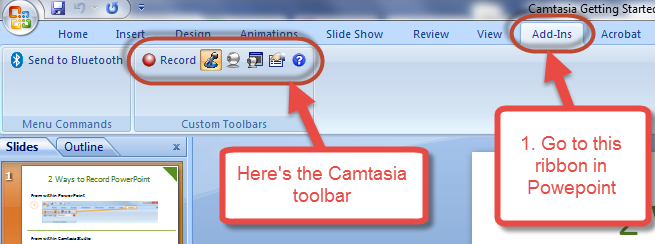
If you’re using an older version of Powerpoint (when it had menus instead of ‘ribbons’), then you’ll find the toolbar at the top of your presentation window.
The Toolbar Controls
With this nifty little toolbar, you can start, stop and control your video recordings within PowerPoint itself. Here’s a little more about the controls…
If you want to record your voice using a microphone, simple click the mic button.
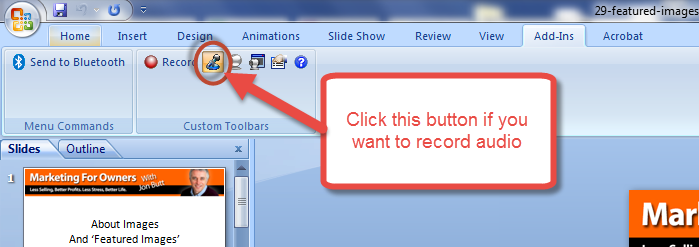
Recording audio is a no-brainer.
I definitely recommend that you record your voice and narrate over the slides. It will give your videos a personal touch: Letting your prospects and customers get to know you, even if it’s just by hearing your voice, helps to instill trust and credibility. And that’s always a good thing.
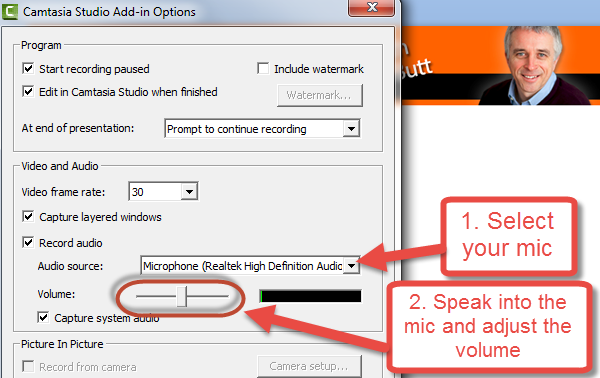
You can customize your settings by clicking the ‘recording options’ button:
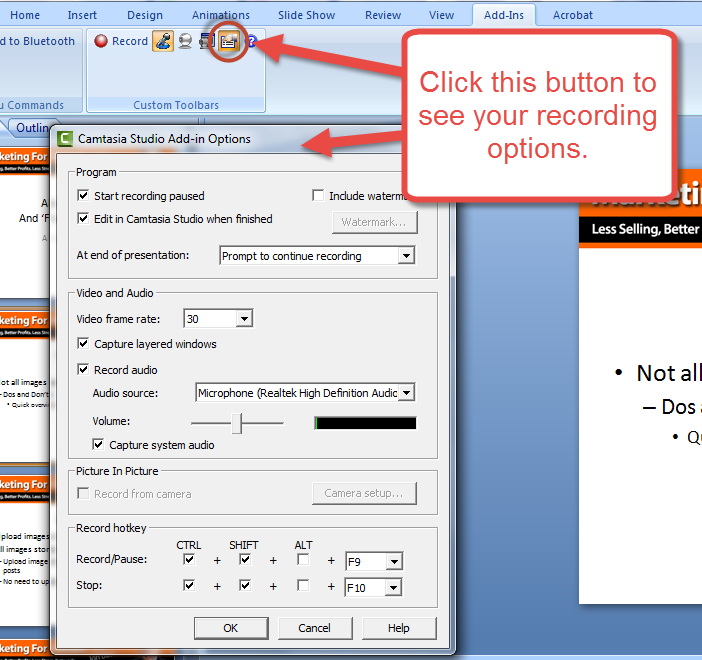
Make sure you set the headset or microphone you’re using. Do a quick sound check too. Simply speak into the mic and watch the levels on the volume meter. Adjust the volume so that you see yellow and green but no red.
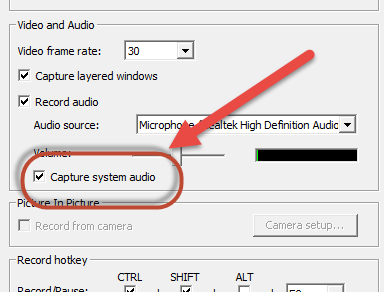
If you want to record the audio that’s coming out of your speakers too (system audio), then you can select that too.
A Walk-Through
In this quick walk-through, we’ll be using one of the tutorials found in the premium area of Marketing for Owners, as an example.
When you’re ready, click the record button in the top toolbar. You’ll see that your presentation automatically goes into full-screen mode and a small Camtasia window shows in the bottom left corner of your screen.
The recording will start as ‘paused’ so this is a good time to check your microphone levels again. If you need to adjust the volume level, you can do so in this little window.
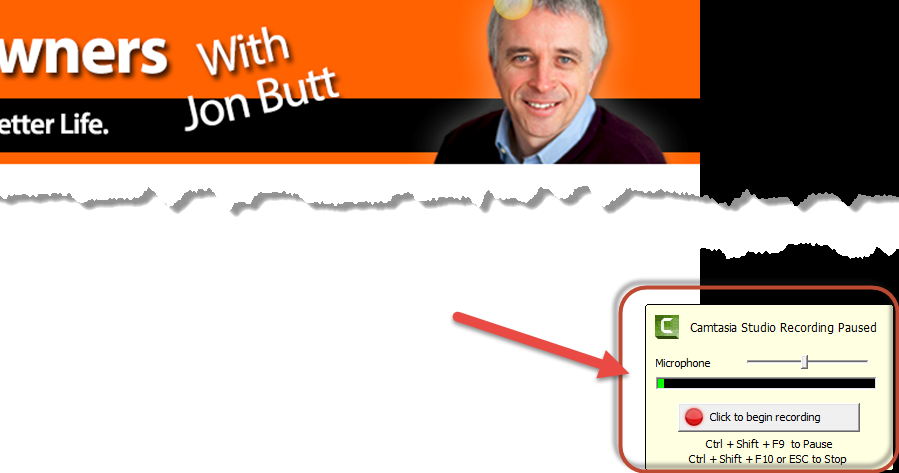
Click the ‘Click to begin recording’ button when you’re ready.
Now you can narrate through your slides. Camtasia will be recording everything that you say and see on your screen.
When you get to the last slide, Camtasia will ask you if you’d like to stop recording.
Then a ‘save’ window will show so that you can save your recording to your computer. At this point, your recording will be saved as a ‘Camtasia’ file (.camrec). That means it’s easily editable in Camtasia, but it can’t be viewed online.
Once you’ve saved your recording Camtasia asks you if you want to edit your recording or produce your recording.
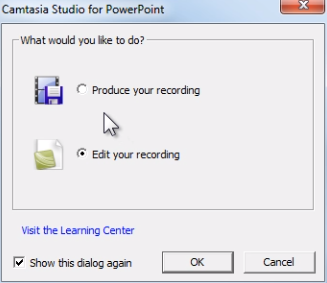
If your recording is good to go, you simply need to select, ‘Produce Your Recording’, and Camtasia will export your recording to a format that will be easily viewable on video players. This option will take you straight to Camtasia’s ‘Production Wizard’, where you can choose the file format.
Editing Your Recording
If you want to edit your recording though then you’ll want to select, ‘Edit your recording’, instead. Here are just a few things you can do within Camtasia, to ‘spice up’ your video:
- Cut parts out
- Slow things down or extend frames
- Add further animations (arrows, text etc)
- Blur parts out
- Add an intro or outro
Camtasia has lots of free video tutorials that will show you how to do that and a whole lot more. So you can learn the amazing things you can do with Camtasia in your own time and at your own pace.
Hopefully we’ve given you a glimpse at just how easy it is to share your knowledge through video. You don’t have to stand in front of a camera in talk (although if you can then that’s great too).
Create a simple presentation packed with great content. Use bullets, animation, keep it short and punchy. Then upload it to YouTube, embed it in your site, mention it in your newsletters, and share your video on your social networks.
Your prospects need to get to know you. They need to see why they should trust you.
Sure, you know why they should trust you. But they don’t.
So just show them.
Give them a reason why.
Record some short, punchy videos full of great content. Share your videos far and wide. Show your prospects why they should trust you by helping them learn what they’re searching for. And then watch as your credibility soars.
[/show_to]
[hide_from visible_to=’public’]
Sorry, access to this special content
is for ‘Owners’ only
Owners log in
here
Not a member of
the Owners Club yet?
[/hide_from]