

Social media has evolved into something incredibly visual. With so many posts scrolling by your followers every day, if you can’t catch their eyes, you might as well not be on social media.
And you need to be on social media.
For many business people on a budget, looking at the graphics on Pinterest, Instagram, Facebook, and, yes, even Twitter, it seems like keeping up with the visual quality required to succeed is impossible without hiring an expensive graphic designer.
There’s a good chance that, until the last year or two, a lot of the people creating those graphics felt the same way.
Where a beautiful graphic used to require Photoshop or Adobe Illustrator skills, a large number of tools and apps have come out over the last couple of years that make it easy for anyone — even you — to create amazing social media graphics.
9 Tools That Will Up Your Graphics Game
#1 Canva
When it comes to graphics tools for social media, you can’t go wrong with Canva.
This free (with some premium items available) web-based program is perfect for people who have limited to no design skills.
Upload your logo, and you can create amazing-looking branded graphics. You can use your own photos, upload stock photos you have the rights to, or choose from a large library of free and paid photos in the built-in library.
My favorite thing about Canva is the typeface. There are lots of text layouts to choose from that will instantly elevate a photo or background into a Pinterest-worthy graphic.
If you’re more experienced, you can create original designs using Canva’s Elements, including grids, shapes, and lines.

Canva isn’t just for simple graphics. It also has a free infographic tool that allows users to select one of many eye-catching designs to create detailed (yet simple) infographics.
Infographics work especially well on Pinterest and Instagram, where you’re meant to add visual, not textual content.
#2 Pablo
Pablo is an extension of Buffer, the social media management tool. It’s purpose is to help you jazz up quotes, tips, and other short texts on social media.
There are basically two steps in Pablo: First, you select one of the thousands of background photo options (or upload your own); second, you add text over it.
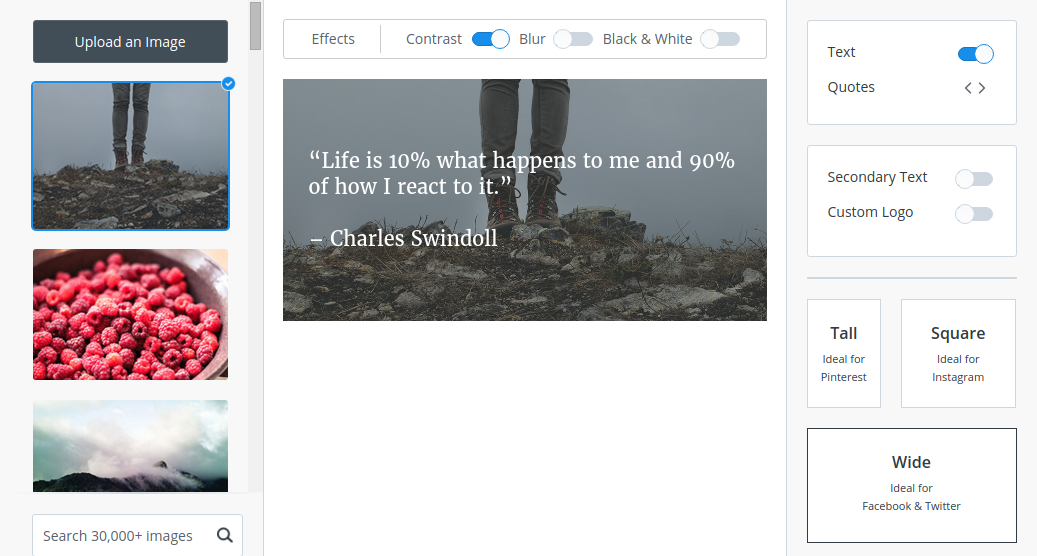
You can add three simple effects to the photo:
- Contrast, which “dims” and mutes the photo by lowering the contrast to make the text stand out,
- Blur, which adds a fuzzy effect to the photo, also making the text stand out, and
- Black-and-white, which, obviously, turns color photos black-and-white.
Then you just click the text, type in your own, and customize it using a handful of nice fonts — or you can use one of the quotes Pablo generates. To change quotes, click on the Quotes button on the right.
Pablo also allows you to add secondary text at the bottom (such as a URL), and your logo.
Once you’re done, you can post it directly to social media. It’s a super-simple tool that creates nice, simple text graphics very quickly, either from the website or using the Pablo extension.
#3 Recite
If selecting effects and basic customization is more than you want to deal with, Recite couldn’t make it any easier. Just type in your text, choose a design from a scroll at the bottom of the page, and click “Create.”

That’s literally it. If you like your design, you can share it instantly.
Recite is extremely easy and the designs are eye-catching, but it does have drawbacks: There is no option to add your logo, so you’re sacrificing your brand for theirs.
Still, if you need to post a text graphic on-the-go (recite.com is totally mobile-friendly), it’s a nice little tool.
#4 Over
If you plan to do most of your social media design on mobile, check out the Over app, “designed for use with your thumbs,” available for iPhone and Android.
Over isn’t free (there’s a small fee to download it in the app store, and in-app purchases are offered), but it’s a highly functional app for creating custom social media graphics.

Much like the other tools, it focuses on laying eye-catching text over a photo or graphic background, and it offers a wide selection of fonts and pictures.
It’s simple, mobile, and convenient — you can snap photos with your phone, open them right in the app, and send them right to social media.
If you like to devote a lot of focus on Instagram and Pinterest, Over is a worthwhile, time-saving app to have.
#5 BeFunky
BeFunky us a free web-based photo editor, collage maker, and design tool.
What makes BeFunky different from most other tools that create quick-and-easy graphics for social media is that it offers both a full photo editing program and a full graphics program.
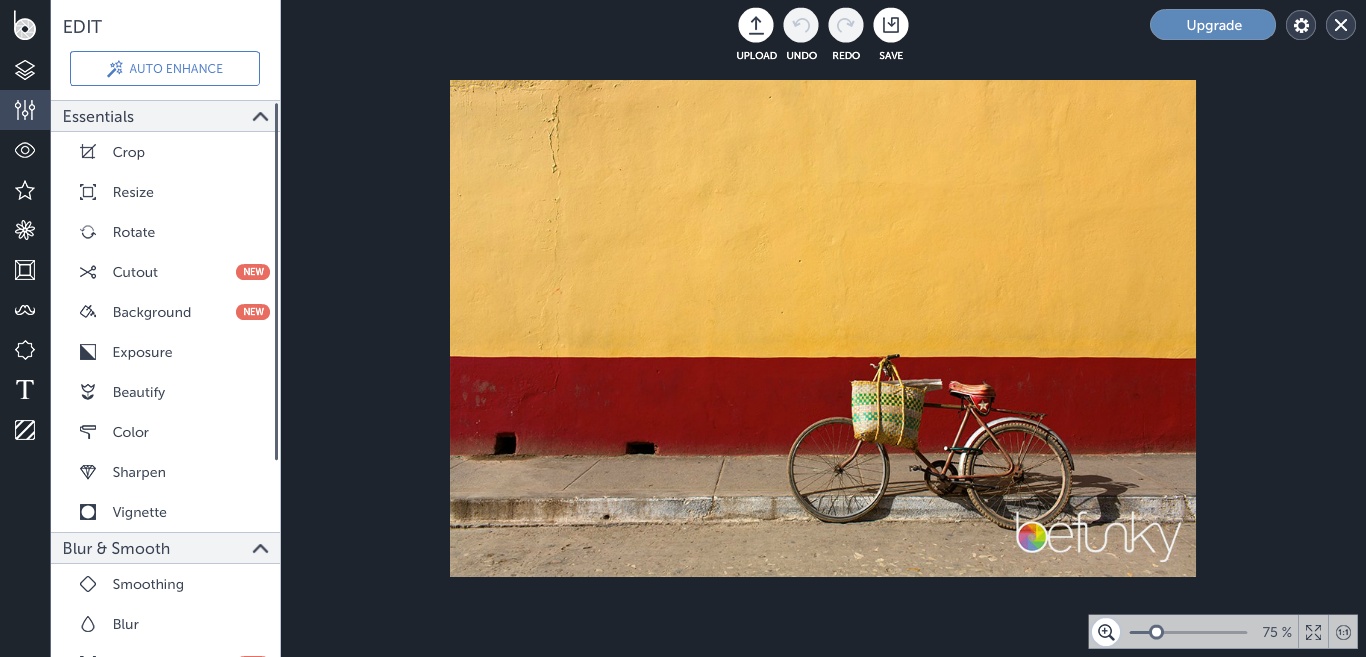
It isn’t exactly Photoshop, but it makes creating beautiful photographic and graphic posts relatively easy.
BeFunky is best for people with some amount of photo editing and design experience, who want a high level control while keeping it simple.
If Canva is too basic, but you don’t want to use Photoshop for every social media design, BeFunky is a good choice.
#6 QuotesCover
QuotesCover calls itself the “fastest quotes maker,” and considering the fact that Recite doesn’t provide quotes for you, it just might be.

There are three steps:
- Select a quote. Quotes come in three searchable categories: (Famous) Quotes, Ancient Proverbs, and Inspirational Lines. If you want a quote from a specific person, search their name and you’ll get a list of quotes to choose from.
- Choose your dimensions from a selection that include social media posts and ecards, Pinterest pin, Facebook cover, Twitter header, Google+ cover, wallpaper, and prints.
- Make edits to the automatically-generated graphic (above) as you like, or simple share on social media.
QuotesCover does allow you to insert a pic in the final step, so you can add your logo and branding.
Probably the best thing about QuotesCover is how easily you can find quotes and lines to use on social media — sometimes, that’s the hardest part.
#7 PictoChart
PictoChart is a fabulous free tool (with premium options) for designing infographics. It’s similar to Canva, in that it offers a selection of professional infographic templates that you can customize to suit your information.
Infographics are more time consuming that simple text graphics, but PictoChart makes it so that you don’t have to be a graphic designer to create your very own infographics.
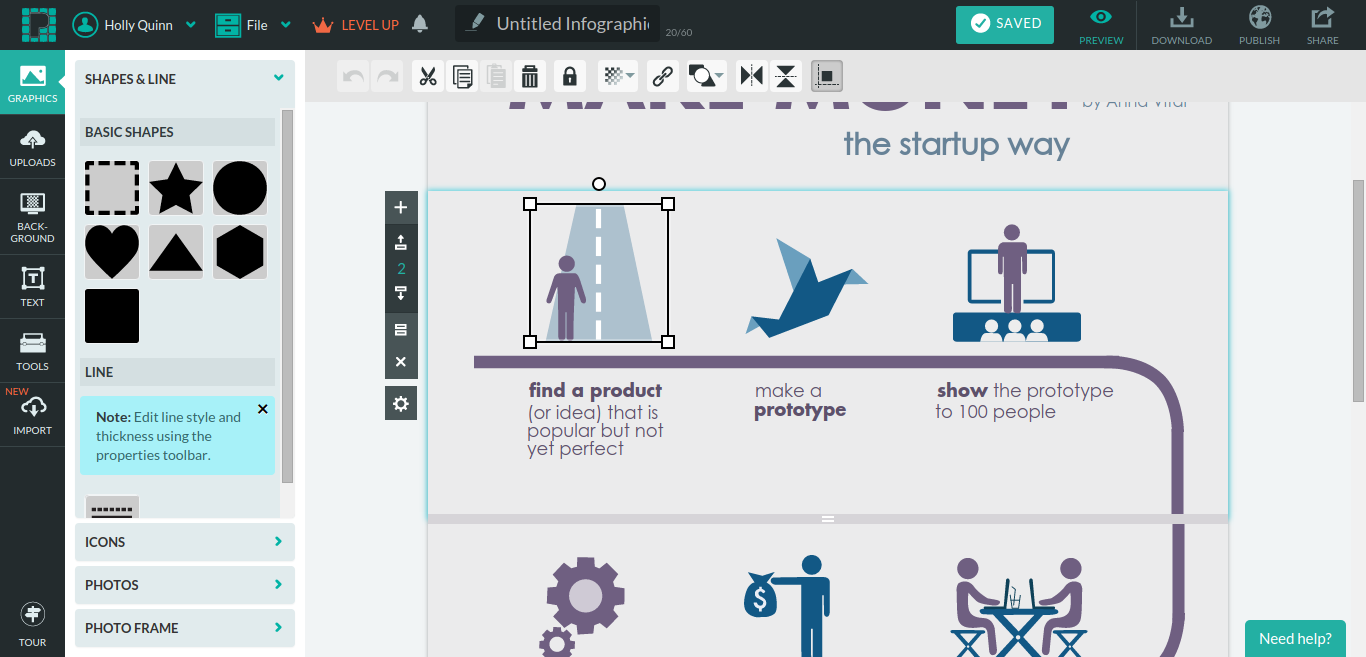
The templates allow you to simply drag-and-drop icons from their collection into the design to make it your own. Customize the text, and you have a graphic ready to be pinned and repinned on Pinterest, spreading your expertise and your brand across social media in a visually-appealing way.
Infographics are incredibly effective social media posts — if you’ve avoided them because you don’t have advanced graphic design skills, PictoChart puts them within your reach.
#8 PicMonkey
PicMonkey is known as a reliable web-based photo editing tool, but it’s also great for creating custom graphics and collages for social media, with a selection of typefaces, overlays, textures, and themes.
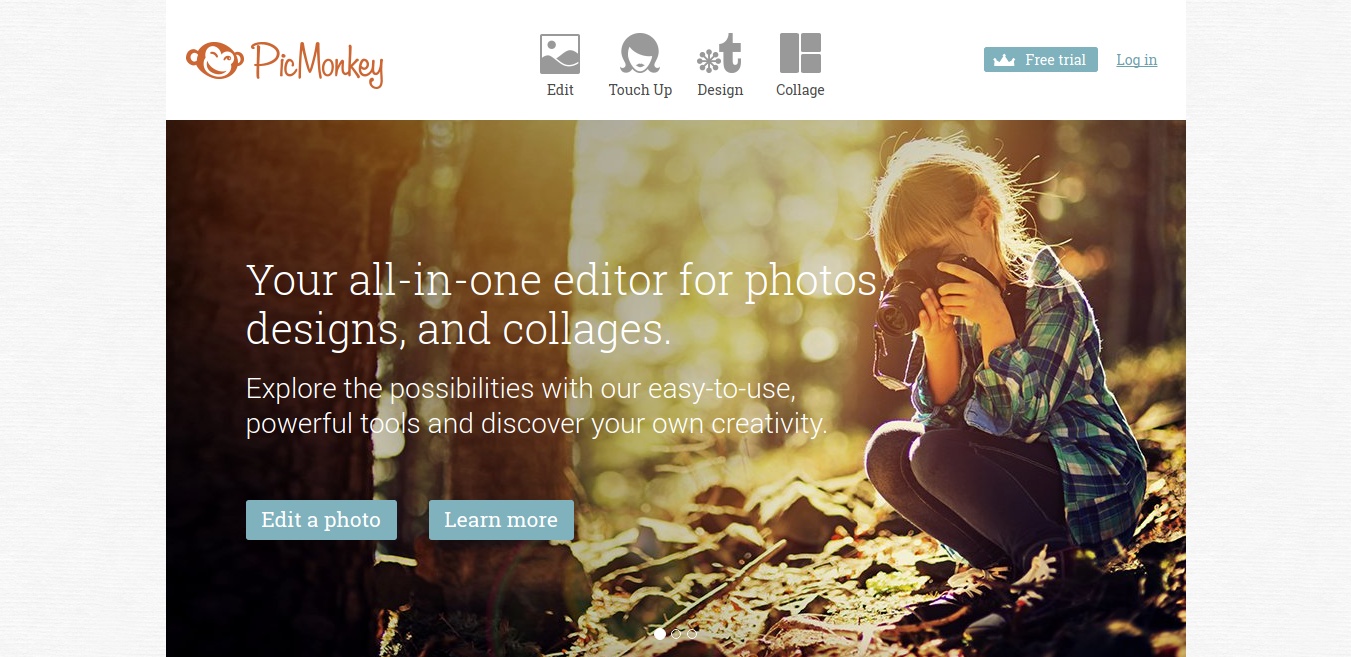
Basic PicMonkey is free and perfectly serviceable for social media design. Like BeFunky, it’s more geared toward people who want to have a lot of control and don’t need pre-laid-out templates.
There are some shortcuts — if you need to upgrade your Facebook cover, PicMonkey has a tool created specifically for Facebook covers.
If you have an original design idea and aren’t sure how to make it happen, they also have a library of easy-to-follow tutorials.
#9 ImgFlip
Internet memes aren’t right for every business, but there’s a reason they’re popular, especially with Millennials: When they perfect image and text align, they’re both funny and perfectly relatable. When people see themselves (or someone they know) in a meme, they want to share it with everyone they know.
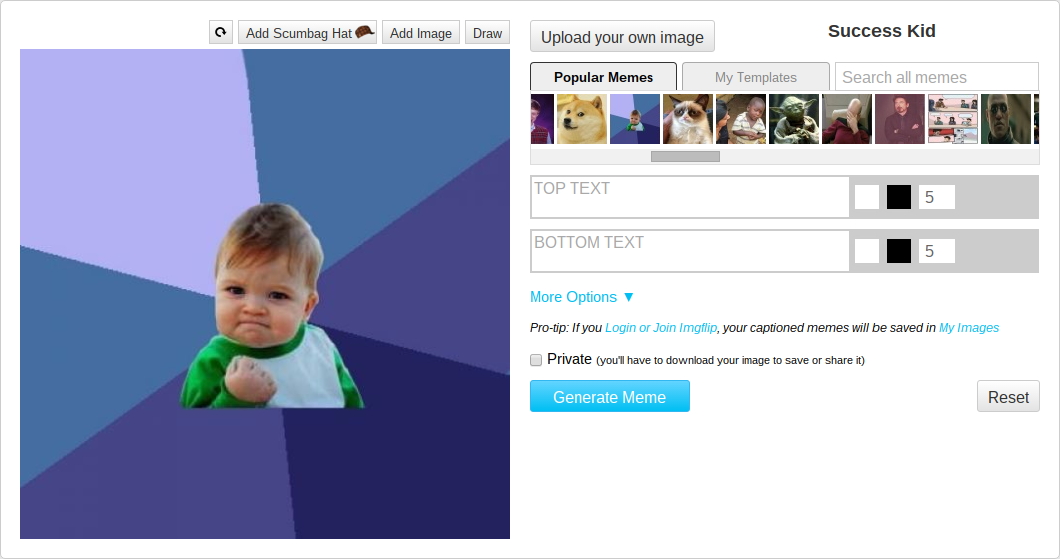
ImgFlip offers a large collection of popular meme images (like “Success Kid,” above) that you can add two lines of brief text — one line across the time, one across the bottom.
Since memes are, well, memes, you should use the standard format, but you don’t have to use an established image. In fact, unless you have the perfect text for a popular meme, you probably shouldn’t use one that’s been around for a while (including Success Kid). It can make your business look stale.
If you happen to have a funny image (pet photos are still popular), use that, overlayed with your own relatable funny text.
The nice thing about memes is that, if you have a perfect photo you’ve uploaded, you can use it over and over — that’s the idea.
You might even get lucky and have your image go viral.
And Finally
Bottom line: There is no excuse to not have cool, branded graphics on social media. Play around with some of these tools and decide which is the one to help you bring your social media to the next level.
Do you create your own graphics for your business’ social media? Did we forget any of your favorite tools? Let us know in the comments!
[hide_from accesslevel=‘free’]
Are You Ready To Start Doubling Your Business With Half The Effort?
If you have a business, whether it’s established or brand new, wouldn’t it be great to know how to use free and low priced modern marketing methods to boost the number of customers banging on your door and dramatically increase your profits? And with no technical degree, no sales staff and just a few minutes a day.
As a member of The Owners Club, you’ll get free access to the methods I used to bootstrap my company from zero to a million dollars in its first 12 months with no sales staff (it was actually $1,002,000). And the methods I’m using today to keep growing it beyond 97,000 customers with very little effort. Best of all, it’s absolutely free.
Go here to get started
[/hide_from]





This is so helpful. Thanks
I’m so pleased you liked it, Nene 🙂